Reports
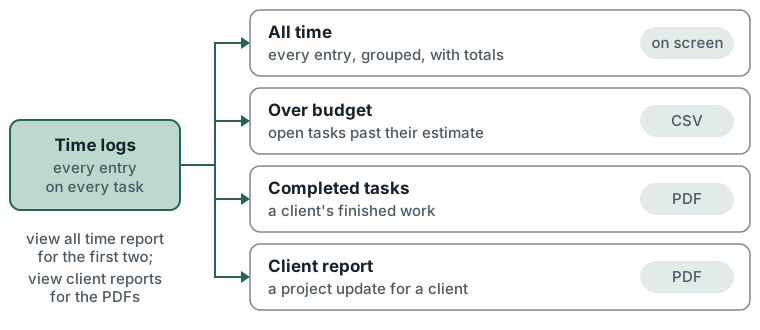
Four reports on logged time. All time lists every entry with totals. Over budget finds open tasks past their estimate. Completed tasks and Client report build PDFs to send a client.
What you can do
- All time: list time entries by project, client, person and date range, filter billable or non-billable, group and sort them, and see logged, billable, non-billable and estimated totals.
- Over budget: list open tasks whose logged time has passed their estimate, or tasks with time logged and no estimate, and export the list as CSV.
- Completed tasks: list a client's tasks completed in a period against their estimates, add notes, and download a PDF.
- Client report: build a project update for a client, with time and task breakdowns, editable text and upcoming tasks, and download a PDF.
How to
All time
- Open Time.
- Choose projects, clients and people (empty means all), a date range or a preset (Today, Yesterday, This week, Last week, This month, Last month), and All time, Billable or Non-billable.
- Choose the sort (Date, Person, Task, Project) and direction (Desc, Asc). Entries group under the sort field, each group with its own subtotals.
- Press Submit.
Over budget
- Open Reports > Over budget.
- Choose projects, clients and people (people filters by assignee), and From and To dates.
- Choose Over budget or No estimate. Press Submit.
- Columns sets the shown columns: Task, Project, Client, Assignee, Estimated, Logged, Over by, Over %, First logged, Last logged, Due. Client and Due are hidden by default. Press a column head to sort. The default is the largest overrun first.
- Press Export CSV for the same rows, filters and order as a spreadsheet.
Completed tasks
- Open Reports > Completed tasks.
- Choose Client and Project (or All projects), then the period: Month, Week (Week commencing, any day in the week) or Custom (From - to). Press Load.
- Optionally press Add note on a task. The note prints under it.
- Set Hide totals, Hide task added, Hide first time logged and Hide developers. Hide developers is on by default.
- Press Generate PDF. The file is named like
Acme Ltd - Completed Tasks Report October 2026.pdf.
Client report
- Open Reports > Client report.
- Choose Client, Projects (empty takes the first project) and the period. Press Load.
- Set Options: Hide budget, Hide estimates, Hide empty sections, Hide tasklist breakdown, Hide task breakdown, Hide focus. Hide budget and Hide estimates are on by default.
- Edit the blocks: Header, Time breakdown (with Note after the time breakdown), Tasklist breakdown, Task breakdown and Upcoming tasks in Focus. Each takes an Introduction or Footnote, and Page break before starts it on a new page.
- In Task breakdown, reorder tasks with Move up and Move down, or drop one with Remove from the report. In Upcoming tasks in Focus, tick the tasks to include.
- Press Generate PDF. The file is named like
Acme Ltd - Project Update for October 2026.pdf.
Limits
- Time and Over budget need the view all time report permission. Completed tasks and Client report need view client reports.
- Reports show only projects the viewer can see. Archived projects stay in the totals.
- Bots and people hidden from reporting are left out of every total.
- All time with no date range shows the last week. Dates filter on when the entry was logged.
- Over budget counts open tasks only: not completed, not archived, with an estimate above zero. Dates filter on the last time logged; totals are always all-time. A running timer counts once stopped.
- Completed tasks: time spent is all time logged on each task. Totals count only tasks with both an estimate and time spent.
- Completed tasks and Client report default to the previous month and leave out tasks hidden from client contacts.
- Client report: a task completed in the period goes to Tasks Completed. Other tasks go to a section by their labels (for example Tasks Awaiting Client Review, Work in Progress, Recurring Tasks), set in the app's configuration. Upcoming tasks come from the board stage named Focus.
- Client report: budget hours come from the project's work stream budget for the months in the period, converted at the stream's billing day. A task list's budget is the sum of its tasks' estimates.
- Nothing typed on the Completed tasks or Client report page is saved. Reloading clears notes and text.
- Where time comes from an import, a banner on Time and Over budget shows when the data was last synced, amber when it is behind.