Time and timer
Every minute of work is a time log on a task. Log it as a typed duration, run a timer while working, or use Log time from anywhere in the app. Reports, budgets and the schedule all read the same logs.
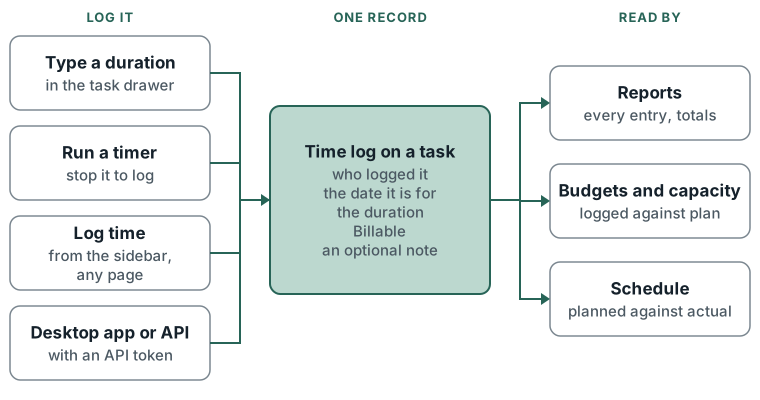
What you can do
- Log a duration against a task from its drawer, with an optional note.
- Start and stop a timer on a task. One timer runs at a time.
- See the running timer from any page, open its task, or stop it there.
- Log time from anywhere with Log time: pick the project and task, the date, the duration and Billable.
- Backdate an entry with Log time, up to today.
- Add or change the note on an entry after logging it.
- Delete an entry.
- See every entry on a task with who logged it, the date it was logged for, and the task's total.
How to
- Log on a task: open the task, type a duration in the box beside the play button (placeholder 0:00), type What did you work on? (optional), then press +.
- Run a timer: open the task and press play. The duration box blinks while it runs. Press stop to log the time.
- Log from anywhere: press Log time in the sidebar (the clock icon on the collapsed rail). Fill Project, Task, Date (Today and Yesterday are shortcuts), Duration or a preset (15m, 30m, 45m, 1h, 2h), Description and Billable. Press Log time, or Save & log another to keep the form open.
- Add a note to an entry: press Add note under it, type, then press Enter. Esc cancels.
- Delete an entry: press the x beside its duration, then Delete.
Durations are typed as 1:30, 1.5 or 1,5. Log time shows the result in minutes before saving.
<!-- verify: a whole number such as 90 is read as hours (90 hours), though Log time's placeholder suggests minutes -->
The running timer shows in the sidebar, or the header on a phone, with the task name and elapsed time. Click it to open the task; press its stop button to stop the timer.
Limits
- Starting a timer on a second task stops the first and logs its time. The drawer names the task already running and says that starting this one stops it.
- A timer left running past 65,535 minutes (about 45 days) is refused rather than logged. Stop or delete it, then start again.
- An entry made in the task drawer or by the timer takes the task's Billable setting. Log time takes the task's setting as its default and lets it be changed per entry.
- The web app edits only an entry's note. Duration changes need the API.
- Only the person who logged an entry can change its note. Deleting needs the delete time log permission and is offered on your own entries.
- Log time lists open tasks only, in projects the person can log to. Projects are grouped by client, with No client for the rest.
- Logging needs the add time log permission and write access to the project; seeing other people's entries needs view time logs.
- The desktop app and other clients log through the same records using API tokens (Settings > You > Connections > API tokens).