Tasks and boards
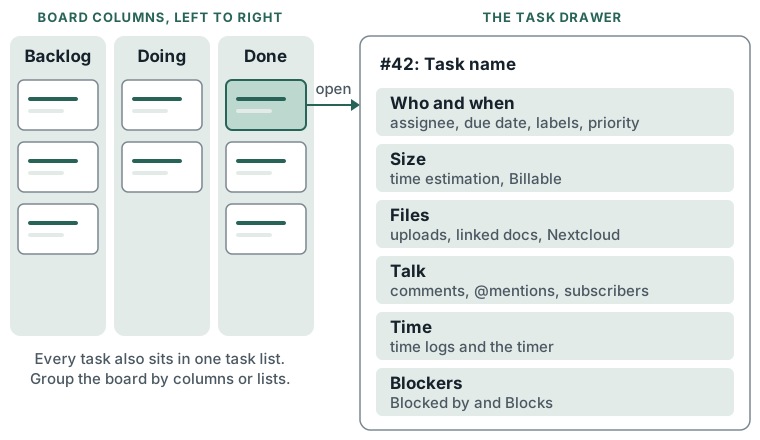
Each project opens on its board: the project's tasks, laid out in rows, cards or a canvas. A task carries everything about one piece of work - who has it, when it is due, its files, comments, time and what blocks it - in one drawer.
What you can do
- Group the board by Board columns (stages, left to right) or Task lists. Every task sits in one task list; on a project with board columns it also sits in one column. A card shows the other grouping under its name.
- Switch layout: Rows layout, Cards layout or Canvas layout (staff only). See Canvas.
- Search tasks; filter by Assignees, Labels, Due date (Not set, Overdue) and Task groups; Show completed tasks; Show archived tasks.
- Sort by Due date, Priority, Assignee, Title or Recently created, or None for the order set by hand.
- From the display options cog: Density, Collapse to a rail for the Backlog column, Show related docs, Show task numbers.
- Jump to another project with Switch project beside the title.
- Open a task in its drawer and edit it in place: Name, description, Task group, Assignee, Due date, Labels, Time estimation, Priority, Billable, Hidden from clients and Subscribers. Changes save as they are made.
- Add files and links: Upload files, Link a doc, or From Nextcloud once Nextcloud is connected under Settings > You > Connections > Integrations.
- Comment on a task, and mention someone with @.
- Record what blocks a task: Blocked by and Blocks. A card with an open blocker shows Blocked.
- See the canvas notes joined to a task under Context, with a link to the canvas they sit on.
- Log time and run a timer from the drawer. See Time and timer.
- Complete a task with the round checkbox in the drawer title; untick it to reopen.
- Drag cards to reorder them or move them to another column or list; drag a column to reorder columns.
- Archive a task or a column, and restore either from Show archived tasks.
- See your own tasks across projects at My Stuff > Tasks, and what happened on your projects at My Stuff > Activity.
How to
- Add a task: press Add task, fill Name and the rest, and press Add task in the drawer. A new task goes into the project's Inbox list unless one is chosen; Inbox is made the first time it is needed.
- Open a task: click its name on a card or row. The title reads
#<number>: <name>. - Assign or date it: pick Assignee and Due date in the drawer's side panel.
- Label it: open Labels, tick labels, or type a new name and choose Create "<name>".
- Prioritise it: open Priority and choose one. A card shows its priority as a coloured edge.
- Add a blocker: in Blocked by, choose Add a blocker and pick a task. To mark a task this one holds up, use Add a task this blocks under Blocks. Remove one with its x.
- Comment: type in Write a comment and press Add comment. Subscribers and anyone mentioned get an email and an in-app notification.
- Complete: tick the checkbox in the drawer title. Some columns complete tasks, such as Done on a private project: dropping a card there completes it, and dragging it out reopens it.
- Move by hand: set Sort by to None, then drag. Under a sort, cards cannot be dragged.
- Add a column or list: press Add board column or Add tasks group at the end of the board and give it a Name. The column's menu > Edit changes its Name and Color; Archive archives it.
- Archive a task: open the card's menu and choose Archive. Restore it from Filters > Show archived tasks, then the card's menu > Restore. On the board, Move to Backlog sends a card to the Backlog column.
- My tasks: open My Stuff > Tasks. Search by name or number, filter by Projects, Task groups, Status, Due date (Overdue, Due today, Due this week, No due date), Priority and Labels, and Show completed tasks. Sort and Fields are in the display options cog.
- Activity: open My Stuff > Activity. Filter by Projects, People, Activity type (Created, Comments, Edits, Assignment, Due dates, Completion, Moves, Archiving, Attachments) and Date (From, To). Press Only this task on an entry to see one task's history.
Keys
- Mod+K - Quick switcher: jump to a doc or project. With nothing typed it offers favourite projects.
- ? - Show keyboard shortcuts.
- @ - Mention someone in a task description or comment; Up and Down move through the list, Enter picks, Esc closes it.
- Enter - Add the task (quick add); Esc clears it.
- Enter - Save a time log note; Esc cancels it.
Personal projects
A private project, such as the My Stuff project each staff member gets, draws a simpler board. It starts with To Do, Doing and Done columns, where Done completes the task. Grouped by Task lists, each list has an Add an item box: type a name and press Enter. Subscribers and Hidden from clients do not show.
Limits
- A project with no board columns shows as task lists only; Group by is not offered there.
- Dependencies join tasks in the same project only. A task cannot block itself, and a loop is refused.
- Uploads are capped at 10 MB a file, 25 MB for audio. SVG, HTML and zip files are not accepted.
- My Stuff > Tasks shows at most 500 tasks and says so when it stops.
- Due dates cannot be set in the past from the drawer.
- Client logins see only tasks not marked Hidden from clients, and no prices or rates.
- A board column with open tasks, or a task list with any tasks, cannot be archived.