Dashboard
The dashboard is the first page after sign-in. Its Delivery cards answer where the month's time went: hours logged, planned against actual, and which clients took time from others.
What you can do
- Read the Delivery tab's cards:
- Hours logged, Billable hours, Non-billable hours, Active projects and Overdue tasks. Each shows the latest value, a sparkline and the change over its window. A card whose figure is out of date is marked.
- Hours this month, by client.
- Planned vs actual, this month: Logged against Planned to date and Planned this month.
- Planned vs actual, by developer.
- Where the month actually went: actual against planned time per client and person.
- Step through months with Previous month and Next month. Today returns to the current month. The figures read to the date shown under the month: yesterday for a running month, the last working day for a closed one.
- Hide and show cards from Choose cards.
- Drag a card by its grip to another place or column. The order is saved per person.
Me and Ops tabs
The dashboard has tabs. Delivery is the one above.
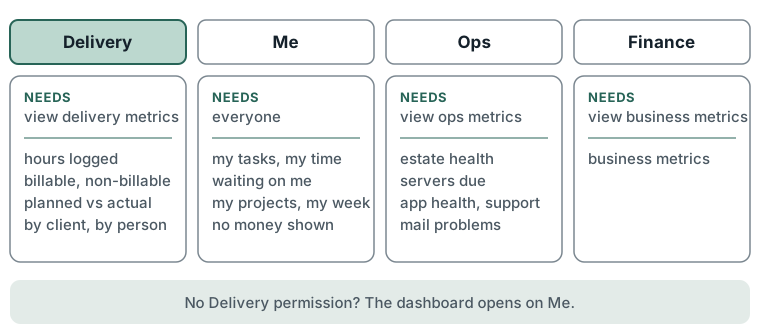
Me is a person's own work, with no money. It holds My tasks, My time this week (with a Log time button), Waiting on me (review requests and mentions), My projects, My week and Support. Every figure is the signed-in person's own. It is the first tab for anyone without the view delivery metrics permission, such as developers and ops, and the second for those with it. Staff roles that have no Delivery cards open on it instead of being sent elsewhere. A card shows only when its feature is on and the person may read what it shows.
Ops is for ops and admins. It holds Estate health, Servers due, App health, Support queue and Mail problems. It needs the view ops metrics permission. Mail problems lists mail that bounced, failed or drew a complaint in the last 7 days, and needs the view sent mail permission. The other cards are filled by the app and support plugins, and are absent without them.
Finance shows for anyone with the view business metrics permission.
How to
- Open Dashboard from the sidebar.
- To hide a card, press Choose cards and switch it off under Cards. Switch it on again to bring it back.
- To move a card, drag the grip above it.
Limits
- Delivery cards need the view delivery metrics permission. Someone without it lands on the Me tab.
- Planned figures come from the schedule and capacity plans. A person whose time is recorded somewhere else shows plan only, flagged on the card.
- A hidden card cannot be placed until it is switched back on; it returns beside its saved neighbour.
- A card that fails shows an error in its own space; the rest of the dashboard still loads.